My Aadhaar Guide: Download, Masked Aadhaar, Update Status and Baal Aadhaar
Aadhaar is India’s 12-digit resident identity number. You can download your Aadhaar, choose a masked copy that shows only the last four digits, check the status of an update, and get Baal Aadhaar guidance for a child under five.
On this page
- Understanding myAadhaar, the myAadhaar portal and UIDAI
- Enrolment at an Aadhaar Seva Kendra: demographic and biometric data
- The myAadhaar portal and the mAadhaar app: which route to use
- Aadhaar card download online: choosing the right copy
- Masked Aadhaar download: when a masked copy is the better choice
- Aadhaar update status and corrections
- Baal Aadhaar in depth
- PVC card and physical copies
- Linking and verification uses, in general terms
- Keeping your details current, and staying safe
Full guides: Masked Aadhaar Download, Aadhaar Update Status by URN, Baal Aadhaar Under 5
Quick answers
| Question | Short answer | Where to go |
|---|---|---|
| How do I download masked Aadhaar? | Choose the masked option on the official myAadhaar portal, so only the last 4 digits are shown. | Official myAadhaar portal only |
| How do I check my Aadhaar update status by URN? | Use the reference on your acknowledgement on the official myAadhaar portal. | Official myAadhaar portal only |
| What is Baal Aadhaar for a child under 5? | It is the Aadhaar enrolment route for young children. A centre visit is normally needed, with the documents the centre asks for. | Authorised Aadhaar centre, with guidance on the official portal |
| How do I order a PVC card? | Use the PVC card order service on the official myAadhaar portal only. | Official myAadhaar portal only |
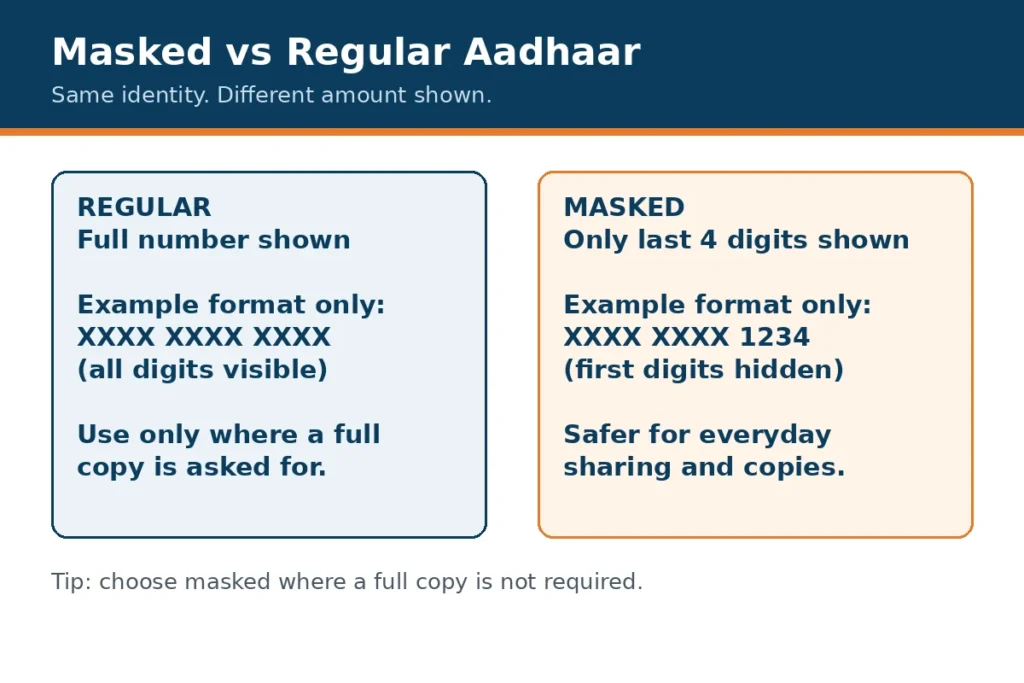
Masked Aadhaar vs regular Aadhaar
- Masked download steps: open the official portal, choose Download Aadhaar, select the masked option, complete only the official verification shown there, and save the masked copy privately.
Masked Aadhaar hides the first 8 digits and shows only the last 4 digits, in the format XXXX-XXXX-1234. That example uses placeholder digits only. It is not a real card and it is not a real Aadhaar number.
Regular Aadhaar shows the full number. Masked Aadhaar is safer to share when a masked copy is accepted, because it reveals less of the number. Always check whether the organisation asking for it accepts a masked copy before you share anything.
Read the full guide: Masked Aadhaar Download
What you can do online, and what needs a centre visit
Usually online, on the official portal
- Update-status steps: open the official portal, choose Check Aadhaar Update Status, enter only the reference shown on the official page, and read the status shown there; do not share the reference or any OTP with anyone else.
- Download masked Aadhaar or regular Aadhaar, if you are eligible and can complete the official verification on that portal.
- Check an update status using the reference shown on the official portal.
- Order a PVC card through the official portal service.
- Find general information and locate a centre.
Usually needs a centre visit
- Baal Aadhaar steps: check the official guidance for a child under 5, visit an authorised centre with the parent and the documents it lists, and keep the acknowledgement safely; do not share the child’s details or card photo online.
- New enrolment, including Baal Aadhaar for a child under 5.
- Biometric updates, such as fingerprints or iris scans.
- Changes that the online service does not allow, or cases where documents must be checked in person.
Take original documents if a centre asks for them, and keep copies safe. Do not hand your original documents to an unofficial agent.
Fees
| Service | Fee confirmed on UIDAI |
|---|---|
| Aadhaar PVC card | Rs 75, including GST and speed post charges (revised from 1 January 2026) |
| Address update | Rs 75, as shown on the UIDAI home page |
| Demographic update at a centre | Rs 100, including taxes |
| Demographic and biometric update at a centre | Rs 100, including taxes |
| Demographic update online | Rs 50, including GST |
| Document update at a centre | Rs 50 |
| Mandatory biometric update aged 5 to 17 | Free until 30 September 2027 |
Last checked on UIDAI: 3 November 2026. See the official UIDAI fee pages.
Stay safe
- Safety steps: use the official portal only, never share an Aadhaar number, OTP, bank detail or card photo, and stop if any message asks for an OTP or a fee for a fast service.
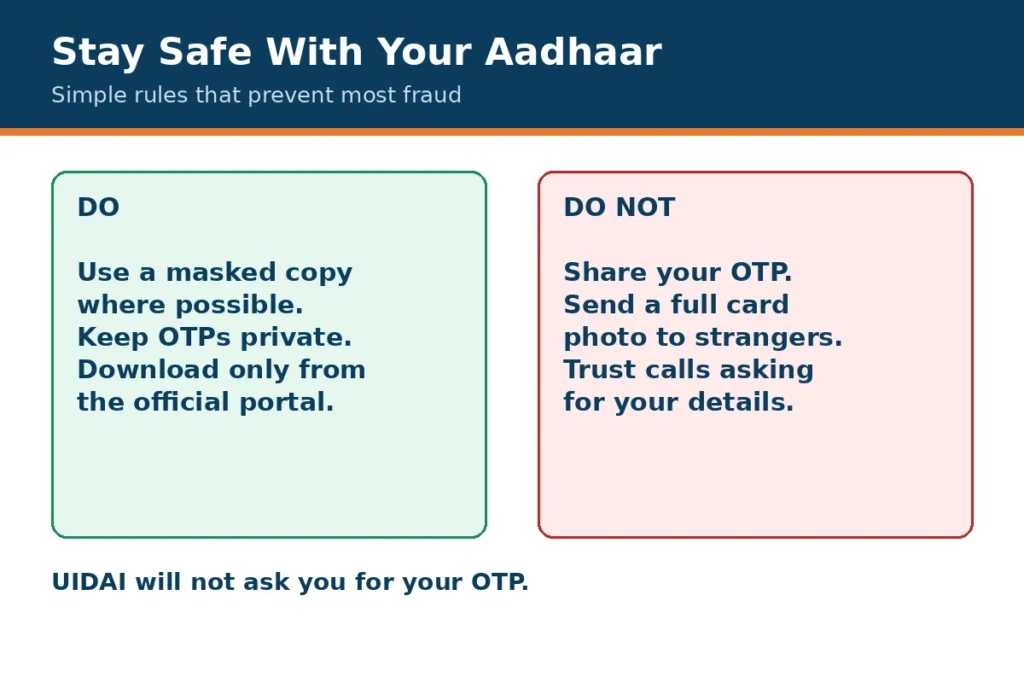
- Never share your Aadhaar number, OTP, bank details or passwords with unofficial sites, callers or messages.
- Do not send a photo of your Aadhaar card to an unknown person or website.
- If you need help, use official channels only. The Aadhaar helpline number is 1947, but use it only through official channels and never share an OTP with a caller.
- If a message promises a fast Aadhaar service for a fee, or asks for an OTP, stop and check through the official portal instead.
What Aadhaar is and what it is used for
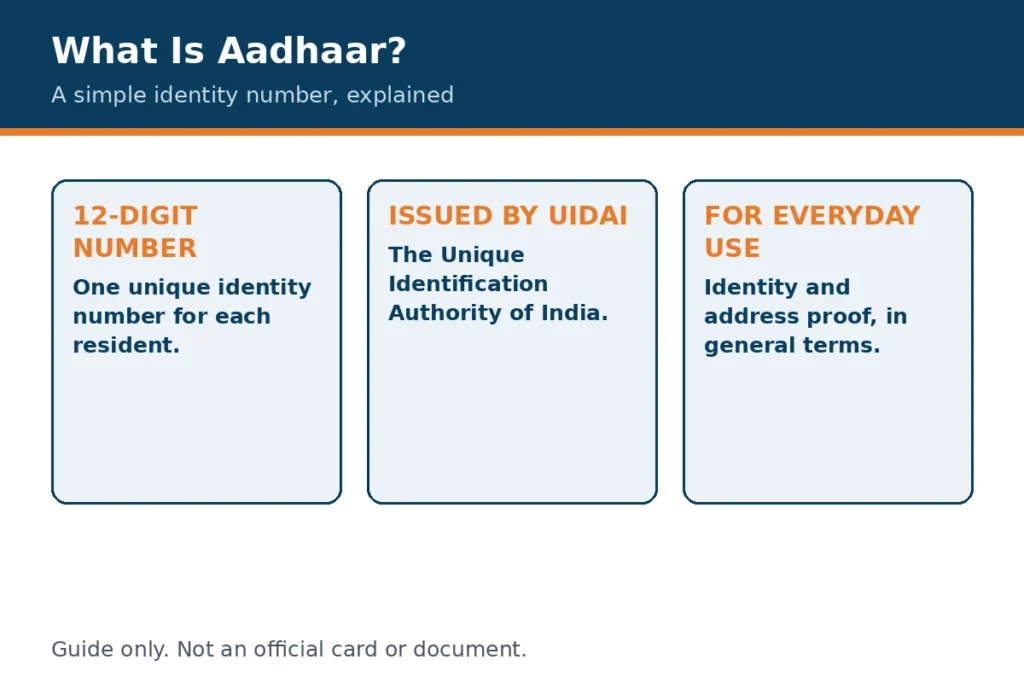
Aadhaar is a 12-digit identity number for residents. It gives a single, recognised way to check who a person is, by linking that number to the details held on the person’s record. The number itself should still be treated as private information.
People use Aadhaar in everyday life when a service needs to confirm identity. That can include opening an account, taking up a service, or receiving a benefit or service that is linked to a verified identity. The exact rules depend on the service, so it is always worth checking what that service asks for before you share a copy.
- Proving identity when a service asks for a recognised identity document.
- Helping a service check that the person presenting the details matches the record held for that number.
- Using services and accounts where identity proof is part of the normal checks.
- Receiving benefits or services that are linked to a verified identity, where the service allows that route.
Aadhaar is an identity number, not a replacement for every other document. A service may still ask for extra proof, and it may have its own rules about which copy it accepts. If you are unsure, ask the service what it needs, and use the official portal or an authorised centre for any Aadhaar action.
Regular, masked and Baal Aadhaar in more depth
Regular Aadhaar
Regular Aadhaar shows the full number. Because the full number can be misused if it falls into the wrong hands, keep a regular copy private, store it securely, and share it only where a full copy is genuinely required and only through an official channel.
Masked Aadhaar
Masked Aadhaar hides the first eight digits and shows only the last four digits. It is designed for routine identity checks where a service does not need the full number. It is still a personal document, so store it safely and do not post it in a public place.
Before you share a masked copy, check whether the service accepts it. Some services may ask for a full copy, and some may accept a masked copy. If a full copy is required, use the official portal or an authorised centre, and do not send the full copy through an unofficial message or website.
Baal Aadhaar
Baal Aadhaar is the enrolment route for a child under five. A parent or guardian normally takes the child to an authorised centre, where the child’s details and photograph are recorded and the parent or guardian record is linked. As the child grows, the centre may need to record updated biometric details, so check the official guidance before a visit.
In short, choose a masked copy for routine checks, a regular copy only where a full copy is required, and the Baal Aadhaar route for a young child. Do not use one person’s copy for another person, and do not treat a downloaded copy as something you can edit yourself.
How to download Aadhaar
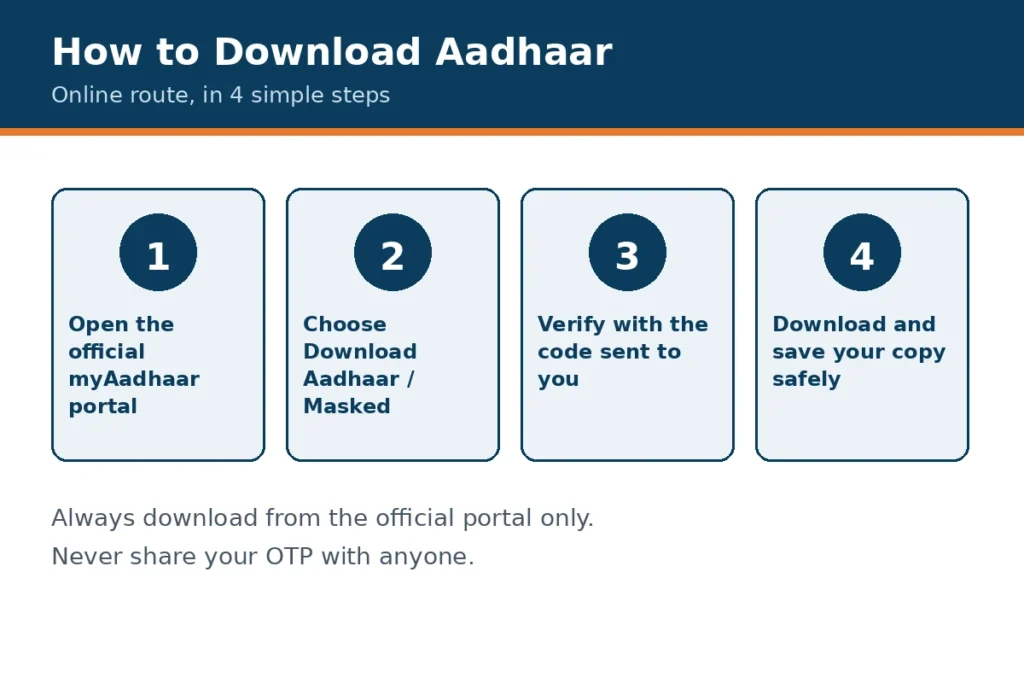
Download only from the official portal, on a private device, and with access to the mobile number linked to Aadhaar. If you are not on the official portal, stop and start again from the official address.
Online route, in clear steps
- Open the official myAadhaar portal.
- Choose the download option offered on the official portal.
- Complete only the official verification shown there. This normally involves a code sent to the linked mobile number. Never share that code with anyone else.
- Choose a regular or masked copy, if that choice is offered.
- Download the copy, check that the file opens, and save it in a safe place. Delete it from any shared device.
At an Aadhaar centre
- Find an authorised centre through the official portal.
- Take the original documents the centre asks for, and copies if asked.
- Let the staff verify the documents and record any details or biometrics needed in person.
- Keep the acknowledgement slip safe, and use the reference on it to check the status on the official portal.
Centre staff should not ask you for a password or a code sent to your phone for an unofficial purpose. If a request feels wrong, stop, and check through the official portal or official support channels instead.
What to check before you download
- Check that the spelling of your name matches the documents you plan to use with the copy.
- Check that you can receive messages on the mobile number linked to Aadhaar, because many online steps need verification through that number.
- Decide whether you need a masked copy or a regular copy, and share the masked copy where it is accepted.
- Check that you are on the official portal, and that you are using a private device and a trusted connection.
- Think about where the downloaded file will be stored, and who else could see it on that device.
If a detail on the downloaded copy does not match your documents, do not edit the copy yourself. Use the official update route, or visit an authorised centre, and keep the existing copy until the updated record is available.
Updating Aadhaar: demographic and biometric updates
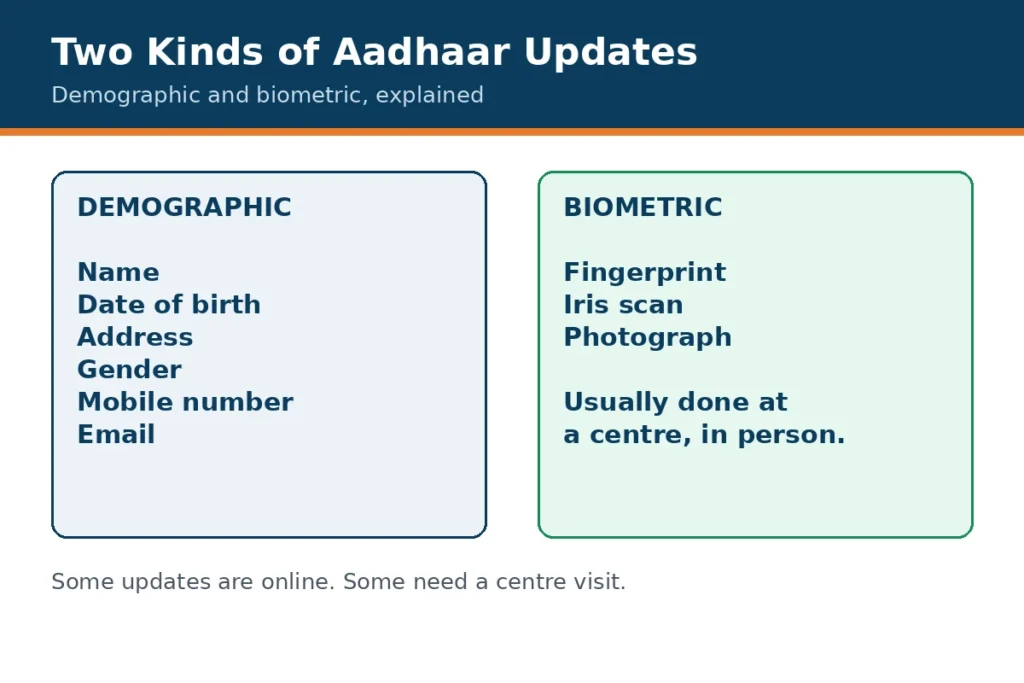
Updates fall into two broad groups. Knowing which group your change belongs to helps you decide whether an online step may be possible, or whether a centre visit is more likely.
Demographic updates
Demographic updates cover details in the record, such as name, address, date of birth, mobile number and email address. Some of these changes may be possible through the official portal if you are eligible, and others may need a centre visit. The centre or portal may ask for supporting documents, so check the official guidance first.
Biometric updates
Biometric updates cover details that must be recorded in person, such as fingerprints, iris scans and photographs. These normally need a centre visit, because the details cannot be recorded reliably from home. Take the documents the centre asks for, and keep the acknowledgement slip safe.
Checking an update status
Use the official status page, and the reference on your acknowledgement slip. Read the status shown there, and check again later if it is still in progress. Keep the reference private, do not share it or any code with anyone else, and call 1947 if it has been pending a long time.
Documents and identity proof: general guidance
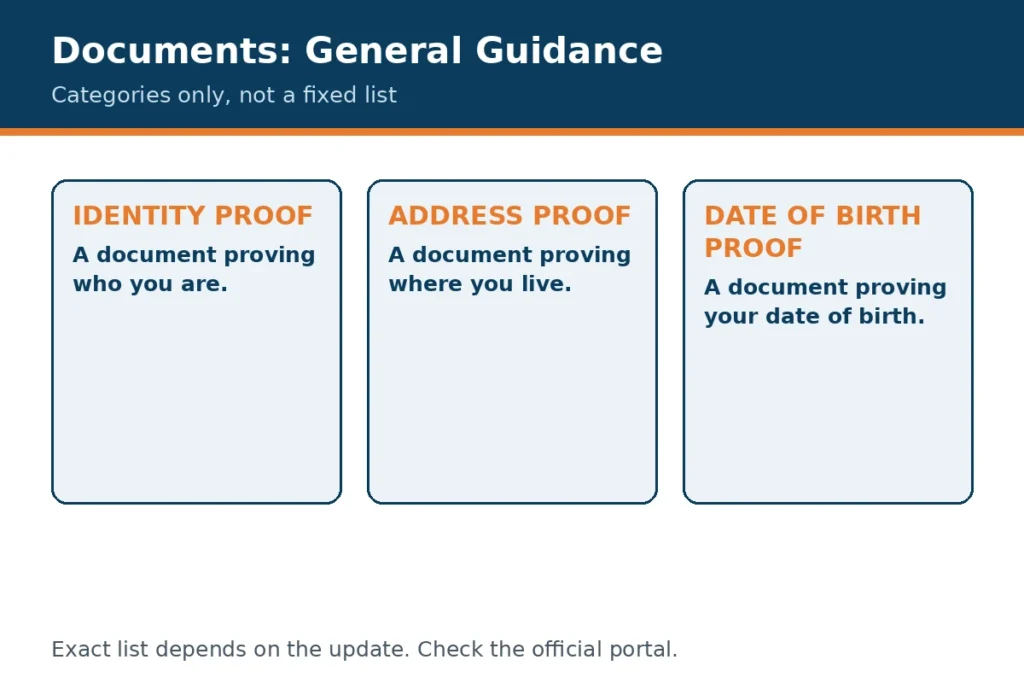
Documents are used to support an enrolment or an update, and the documents a centre asks for can depend on the change you need. Check the official guidance before a visit, rather than relying on a list from an unofficial site.
- Take the original documents the centre asks for, and copies if asked.
- Make sure the details on your documents match the Aadhaar record as closely as possible. A difference in spelling can cause a delay, so note the exact difference before you go.
- If a document is damaged or hard to read, ask the centre or check the official guidance about what alternative may be accepted.
- Never upload documents, or a copy of Aadhaar, to an unofficial website, and never hand original documents to an unofficial person.
For general official information, use the official UIDAI website. This guide does not list every accepted document, because the official list and the rules for each change can be updated.
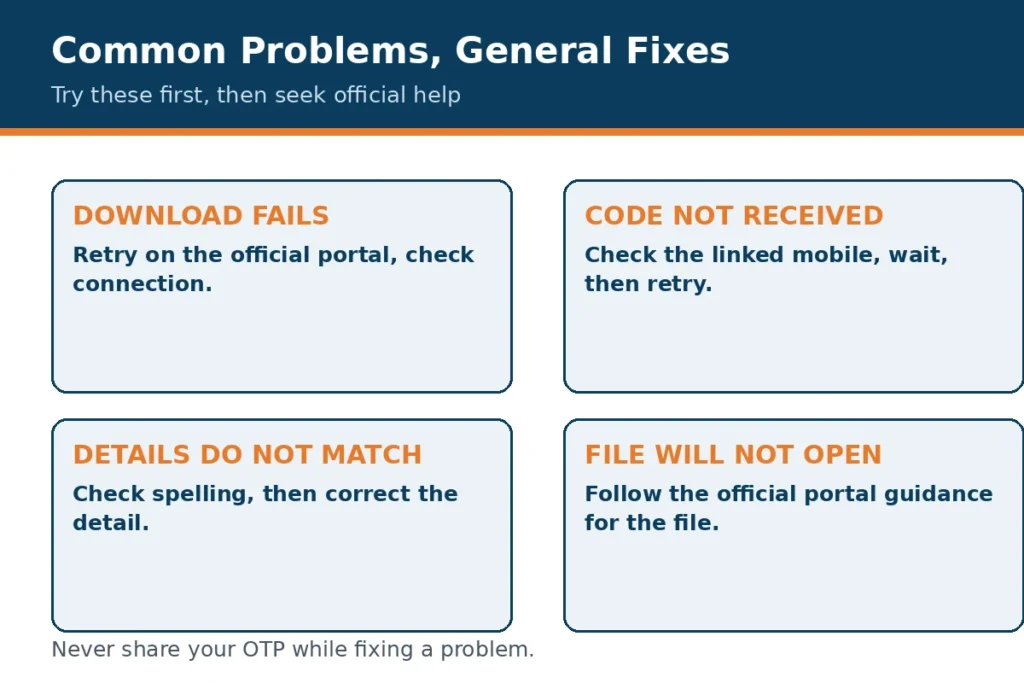
Common problems and general fixes
Download not working
Check your connection, try the official portal again later, and try a different browser or device if the download still fails. Make sure downloads are allowed on the device, and that there is enough storage space. Do not use an unofficial download site, and consider a centre visit if the online route keeps failing.
Code not received
Check that the mobile number linked to Aadhaar is the number you can use now, and that the phone has signal and space for new messages. Wait a short while, and request a code again only through the official portal. Never share a code with a caller, a message sender, or a website, even if they claim to be helping you.
Details do not match
Compare the downloaded copy with the documents you hold, and note exactly where the difference lies. Then use the official update route or an authorised centre to correct the record. Do not edit the downloaded file yourself, and do not share a copy that you know is wrong as if it were correct.
Masked copy confusion
If a service rejects a masked copy, first ask whether a masked copy is accepted by that service. If a full copy is required, download or obtain it only through the official portal or an authorised centre. Also check that you downloaded the copy you intended: a masked copy shows only the last four digits, while a regular copy shows the full number.
Downloaded file will not open
If the file asks for a password or will not open, follow only the instructions shown on the official portal or in the official download guidance. Do not guess, do not share the file with an unofficial person to get it opened, and try downloading again from the official portal if the file seems damaged.
Safety and fraud prevention in more depth
- Never share your full Aadhaar number, a code sent to your phone, a password, or bank details with an unofficial site, caller or message.
- Use a masked copy where it is accepted, and keep a regular copy private and securely stored.
- Download only from the official portal, and check the site address before you enter any details.
- Be cautious about messages or calls that promise a fast service, ask for a payment to keep Aadhaar active, or ask for a code. Stop, and check through the official portal instead.
- Delete copies you no longer need, lock your device, and never post a full copy on social media or in a public chat.
- If you think you have shared details with a fraudster, stop sharing at once, use official support channels, call 1947 if needed, and contact your bank at once if bank details were shared.
Understanding myAadhaar, the myAadhaar portal and UIDAI
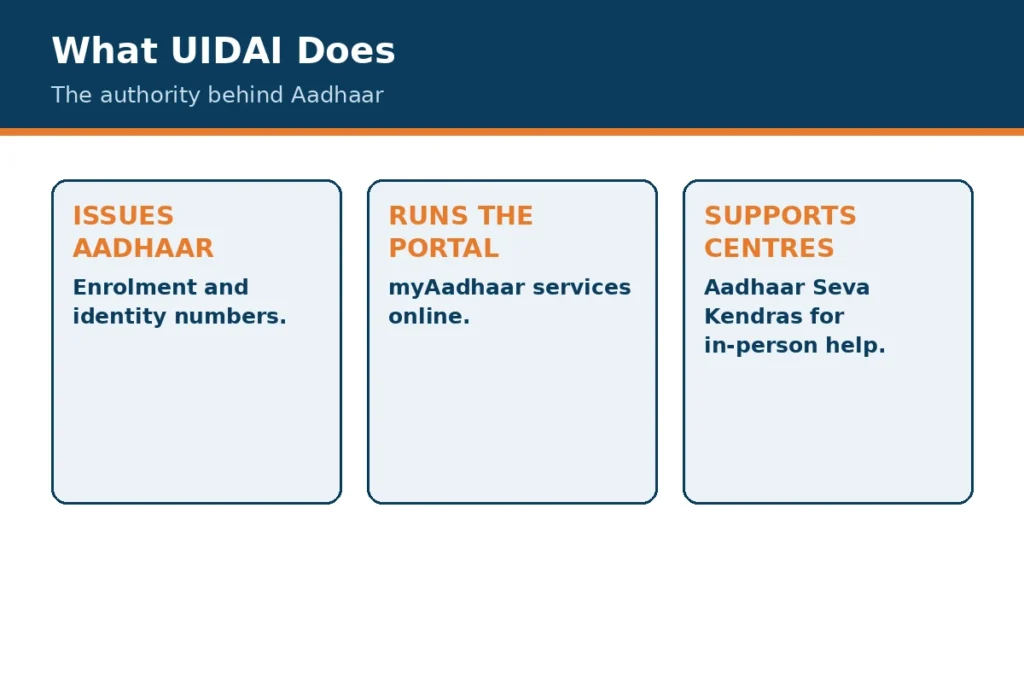
When people search for “my aadhaar” or “myaadhaar”, they are usually looking for a clear route to the official myAadhaar portal, rather than for a copy of the number itself. The myAadhaar portal is the online service run through the Unique Identification Authority of India, known as UIDAI. UIDAI is the authority behind Aadhaar, and its official sites are the places to use for an official download, an update or a status check. This guide explains those routes in plain English, and it does not replace the official guidance.
Aadhaar itself is a 12-digit identity number linked to a resident record. That record holds the details that were given at enrolment and later updated through official routes. Because the number is used as identity proof in many everyday situations, it is worth understanding what each part of the record means, which changes can be made online, and which changes still need a visit to a centre. A calm, step-by-step approach is safer than rushing through a form, and it also makes it easier to spot a mistake before it is submitted.
The myAadhaar portal is best thought of as the front door for online Aadhaar services. It is the place to download an e-Aadhaar copy, to check an Aadhaar update status, to look for a centre, and to find the official route for other services. The portal does not ask you to trust an unofficial copy of the service, and any site that copies its look should be treated with care. Always check the address in the browser, use a private device where possible, and leave a page that asks for details this guide says you should never share here.
What UIDAI does, in simple terms
UIDAI, the Unique Identification Authority of India, issues Aadhaar numbers and keeps the framework for enrolment, updates and verification. It sets out which documents and checks are needed, how centres should record details, and how a person can check a status or download a copy through the official portal. In everyday terms, UIDAI is the source of the rules, the myAadhaar portal is the online place where many of those rules are put into practice, and an Aadhaar Seva Kendra is the physical centre where in-person work is done.
Enrolment at an Aadhaar Seva Kendra: demographic and biometric data
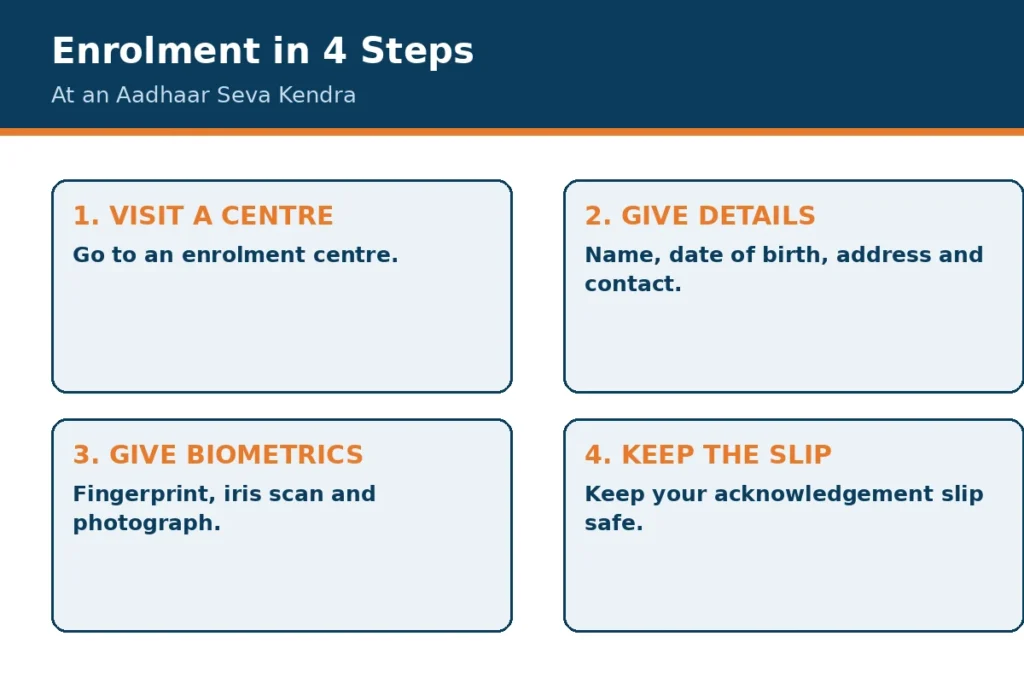
Enrolment is the first step in getting an Aadhaar number. For most adults, and for a child under five through Baal Aadhaar, enrolment happens at an authorised centre, often called an Aadhaar Seva Kendra or an enrolment centre. At the centre, staff record two kinds of information: demographic data and biometric data. Demographic data describes who you are on paper, while biometric data records physical features that help confirm that the record belongs to the right person. Both are recorded carefully, and both should match the documents you present.
Demographic data: name, date of birth, address, gender, mobile and email
Demographic data includes your name, date of birth, address, gender, mobile number and email address. Each of these details matters for a different reason. Your name and date of birth are the details most often compared with other documents, so a small spelling difference can cause a delay later. Your address is the detail that changes most often in ordinary life, when you move house, and it is also the detail people most often need to update. Gender is recorded as part of the basic record. A mobile number is especially important, because many online steps rely on being able to reach you on that number, and an email address gives a second way to receive official messages where that option is offered.
Before an enrolment visit, it helps to check that the details on your documents agree with each other. If one document spells your name one way and another spells it differently, ask at the centre which document should be followed, and keep a note of what was recorded. After enrolment, keep the acknowledgement slip safe, because the reference on it is the way to check what happened next through the official portal. If a detail is wrong, do not try to alter a printed copy yourself; use the official correction route described later in this guide.
Biometric data: fingerprint, iris scan and photograph
Biometric data means the physical measurements recorded at enrolment: a fingerprint, an iris scan and a photograph. Fingerprints are taken from the fingers, an iris scan records the pattern of the eye, and a photograph records how you look at the time of enrolment. Together, these help make sure that one person has one record, and that a later check can confirm that the person presenting details is the person the record belongs to. For a young child, the approach is different, and Baal Aadhaar has its own enrolment route, which is explained in its own section below.
Biometric details cannot be changed online, because they must be recorded in person with the right equipment. If fingerprints or an iris scan need to be updated, for example because they have changed over time or were not recorded clearly, a centre visit is normally needed. At the centre, staff will explain what will be recorded, and you should not be asked to share a password or a code sent to your phone for an unofficial purpose. Keep the acknowledgement slip from a biometric update in the same safe place as any other Aadhaar paperwork.
The myAadhaar portal and the mAadhaar app: which route to use
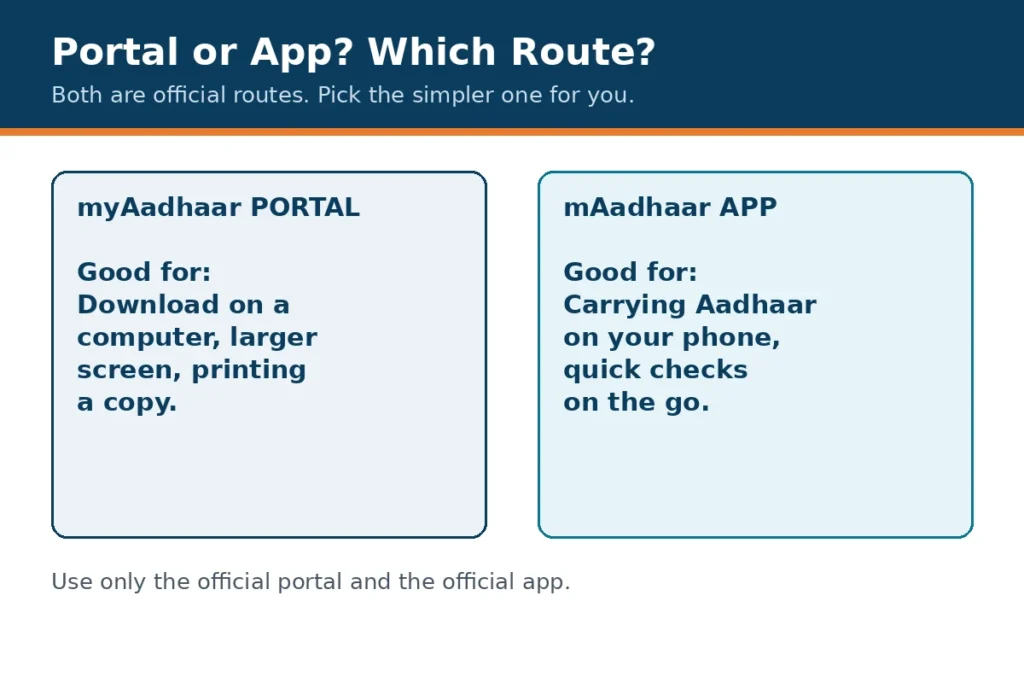
Two official routes are often confused: the myAadhaar portal on a web browser, and the mAadhaar app on a phone. Both are official, but they suit different situations. The portal is usually easier when you are on a computer, when you need to read longer guidance, or when you want to print or save a copy. The app is useful when you are travelling, when you want a quick check on your phone, or when you prefer to keep a digital copy close at hand. Neither route should be replaced by a copycat app or a website that looks similar but uses a different address.
Whichever route you choose, the same safety rules apply. Use the official portal address or the official app listing, check that your device is private and up to date, and never enter details into a page reached from a random message or advertisement. If the app asks for a permission that seems unrelated to the task, stop and check the official guidance before continuing. A genuine official service should not need your bank password, your email password, or a code sent for another service.
When the portal is the simpler choice
Use the myAadhaar portal when you need a clear view of the steps, when you are downloading a copy to save or print, or when you are checking an update status and want to read the result carefully. A larger screen makes it easier to compare a downloaded copy with your documents, and to notice a spelling difference. It is also easier to save the file in a folder you control, rather than leaving it in a shared downloads folder on a public computer.
When the mAadhaar app is the simpler choice
Use the mAadhaar app when you are away from a computer and need a quick, official way to view your Aadhaar details or to find a service. The app is designed for a phone, so its steps are shorter and its screens are smaller. Even so, treat the phone itself as a sensitive document: lock it, keep its software up to date, and do not hand it to a stranger to complete a step for you. If you change phones, remove old copies from the old device before you pass it on.
Aadhaar card download online: choosing the right copy
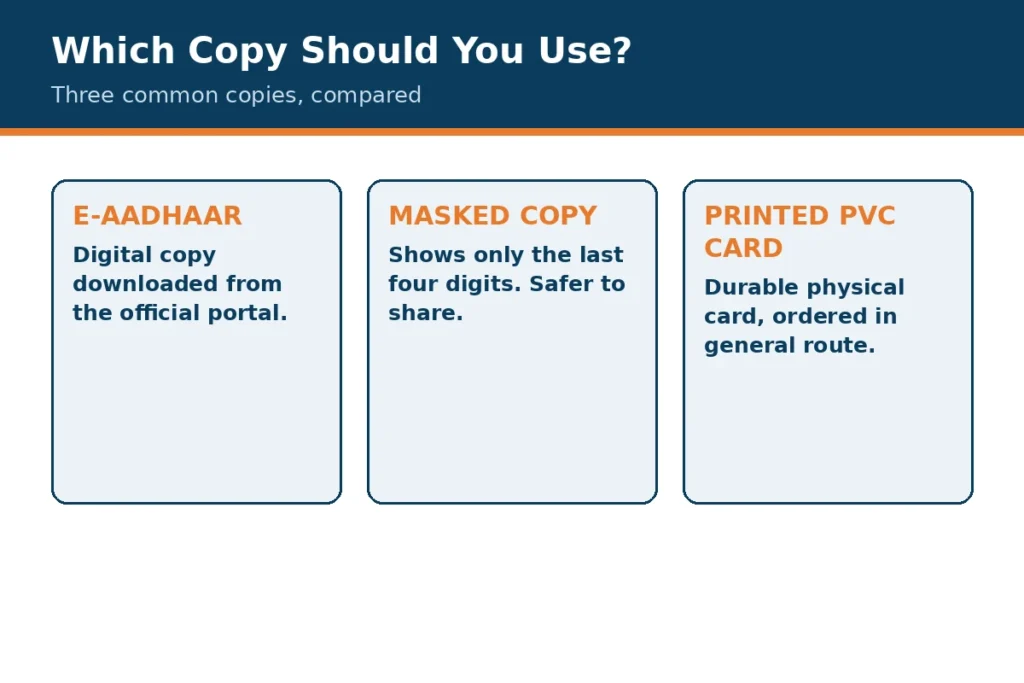
Many searches for “download aadhaar card” and “aadhaar card download online” end at the same question: which copy should I download? The answer depends on what the copy will be used for. A regular e-Aadhaar copy shows the full number and is the copy to use only where a full copy is asked for. A masked Aadhaar copy hides the first eight digits and is the safer choice for routine checks, where a masked copy is accepted. An e-Aadhaar copy is a digital version of the card, and it can be saved and printed, while a physical card is a separate item that follows a different order route, described in general terms below.
What e-Aadhaar is
e-Aadhaar is the electronic copy of Aadhaar that you can download through the official portal. It carries the same basic details as a printed card, including name, photograph and number, in a form that can be stored on a device or printed when needed. Because it is a file, it needs the same care as a physical card: store it in a safe folder, do not send it to an unknown address, and delete copies you no longer need. A downloaded file that is left on a shared computer can be found by the next person who uses that computer.
A short checklist before you download
- Confirm that you are on the official myAadhaar portal, and that the address matches the official address given at the top of this guide.
- Decide in advance whether a masked copy or a regular copy is needed, and choose masked where it is accepted.
- Make sure you can receive messages on the mobile number linked to Aadhaar, because verification usually depends on it.
- Use a private device, a trusted connection, and a folder where the file will not be seen by others.
- After downloading, open the file, check the details, and note any difference before you share it.
Masked Aadhaar download: when a masked copy is the better choice
A search for “masked aadhaar download” usually comes from a simple wish: to prove identity without sharing the full number. Masked Aadhaar does exactly that. It hides the first eight digits and shows only the last four, so a routine check can confirm the identity without putting the full number on a copy that may be stored, copied or forwarded. For many everyday checks, a masked copy is enough, and it is the safer default.
There are times when a masked copy will not be accepted, because a service needs the full number for its own checks. In that case, ask first, before you download or share a regular copy. Do not assume that a full copy is required simply because a form asks for a number; ask the service whether a masked copy is accepted, and what it will do with a full copy if one is given. That short question can prevent a full number from being stored where it is not needed.
Masked, regular and printed copies compared
- Masked Aadhaar: shows only the last four digits, best for routine sharing where it is accepted.
- Regular e-Aadhaar: shows the full number, best kept private and shared only where a full copy is required.
- Printed or physical card: useful where a paper copy is asked for, and a PVC card is a durable physical version that follows its own general order route through the official portal.
Aadhaar update status and corrections: address, mobile, name and date of birth
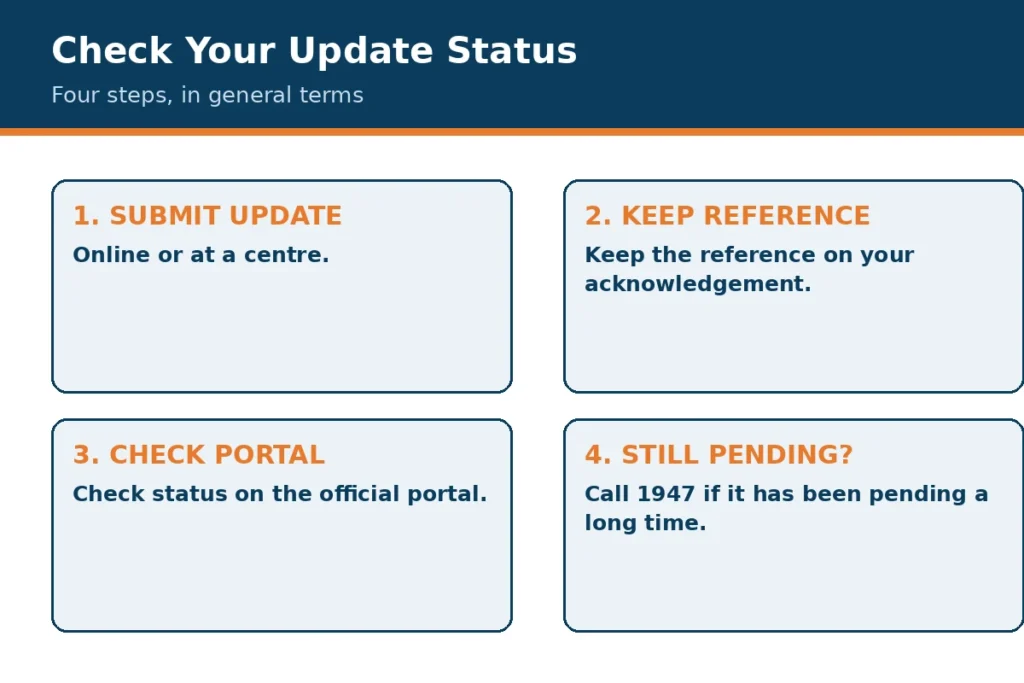
After a change is submitted, the next question is usually about Aadhaar update status. Checking a status is a separate step from making the change, and it uses the reference given on the acknowledgement slip for that change. The official portal shows the current position of that request, and the wording on the portal should be read carefully, rather than guessed from a message sent by someone else. If a request has been pending for a long time, the general guidance already given on this page is to call 1947, the Aadhaar helpline, for help.
Address update
An address update is the most common correction, because people move house, change a rented home, or need a current address on record. When you update an address, check the spelling of the house, street and area carefully, and compare it with the document you are using as proof. A small difference, such as a missing flat number, can cause confusion later, even if the update itself is accepted. Keep a copy of the acknowledgement, and check the status through the official portal using the reference it gives.
Mobile number update
A mobile number update matters more than it first appears, because many online services depend on that number for verification. If the number on record is an old number you no longer use, online downloads and status checks that need a code sent to that number will not work. In that case, updating the mobile number at a centre is normally the first step, and later online steps become possible again. After a mobile update, test the new number by using an official step that needs it, rather than assuming the change has taken effect everywhere.
Name correction and date of birth correction
A name correction should follow the spelling on the supporting document as closely as possible. If your name is spelled differently on two documents, work out which spelling is correct, and use the official correction route to bring the record into line with it. A date of birth correction is similar: a single digit difference can affect other records, so compare the date on your documents before you submit, and keep a note of what was changed. For both kinds of correction, keep the acknowledgement slip safe, because it is the reference for checking the Aadhaar update status afterwards.
Read the full guide: Aadhaar Update Status by URN
Baal Aadhaar in depth: enrolment for a child under five
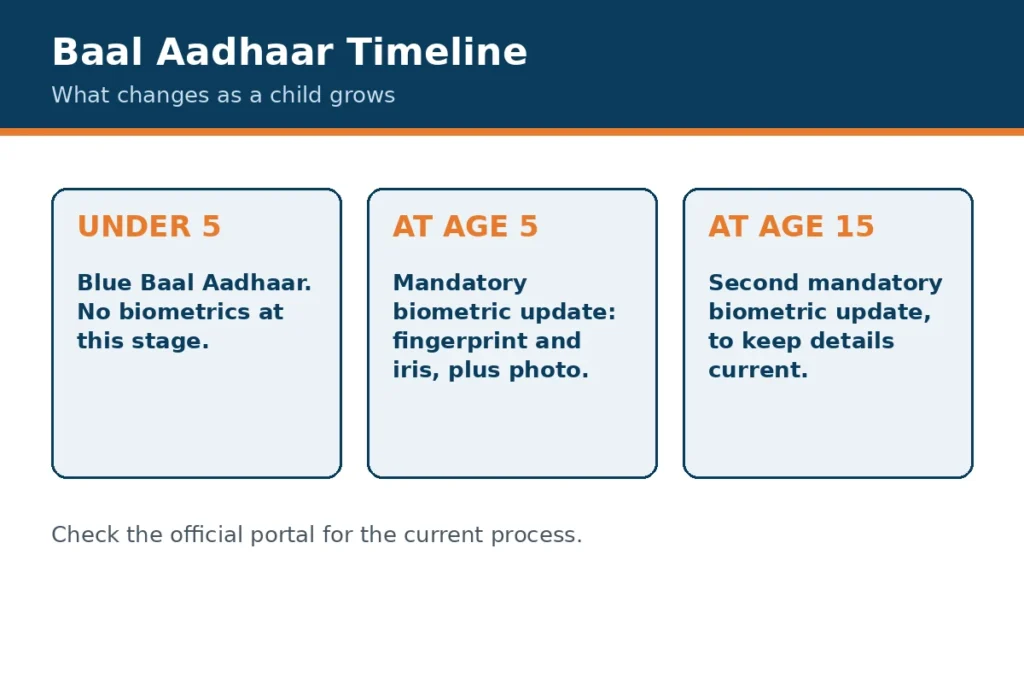
Baal Aadhaar is the Aadhaar route for a child under five. A parent or guardian normally takes the child to an authorised centre, where the enrolment is recorded with the parent or guardian as the link for the child. Because a very young child cannot give the same biometric details as an adult, the process is adapted, and the record is later updated when the child is older and biometric details can be recorded properly. That later update is important, and it should not be missed when the time comes.
For Baal Aadhaar, the documents and checks focus on the child and on the parent or guardian. Take the documents the centre asks for, check that names are spelled in the same way on each document, and keep the acknowledgement slip safe. If a detail changes as the child grows, or if a later biometric update is needed, return to a centre through the official route, rather than trying to alter a copy at home. The guide sections on enrolment and on demographic and biometric data above explain, in general terms, what is recorded and why.
What happens as the child grows
As a child grows, fingerprints and other biometric details change, and a record made for a baby will not stay accurate for a school-age child. That is why a later update at a centre is part of the Baal Aadhaar journey. Parents should note the stage at which an update is needed, check the official guidance, and book a centre visit in good time, rather than leaving it until the record is urgently needed for another purpose. Keeping the acknowledgement slip and the centre details together makes that later visit simpler.
Read the full guide: Baal Aadhaar Under 5
PVC card and physical copies: the general order route
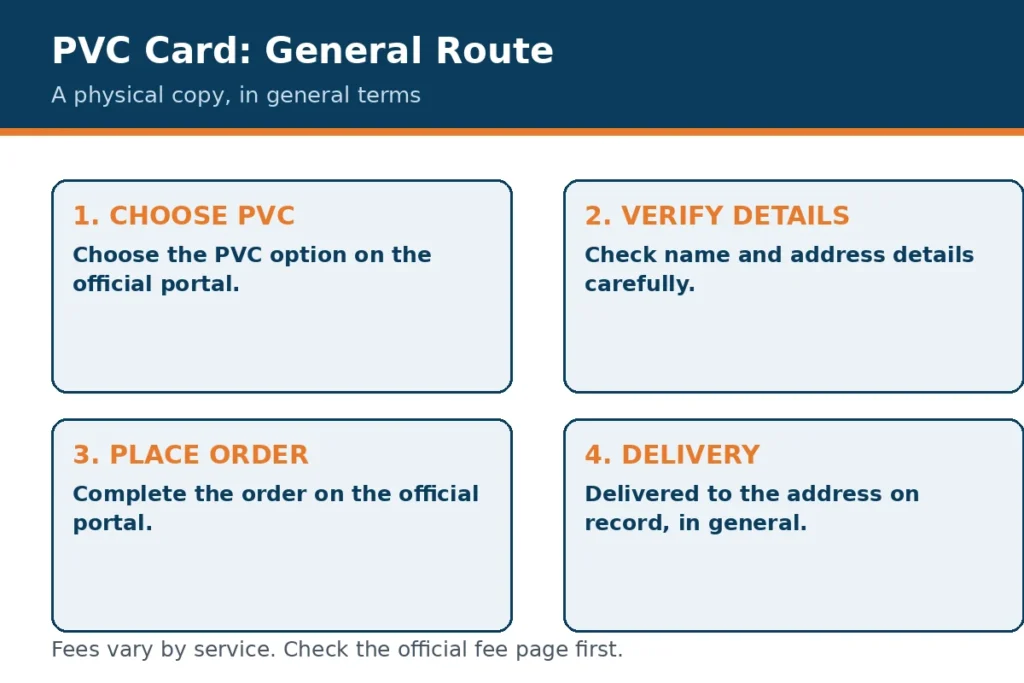
A PVC card is a durable physical Aadhaar card, made from a sturdy plastic-like material, rather than a paper printout. It is a physical card in the general sense, and it follows its own order route through the official portal. In general terms, the route involves using the official portal service for ordering a physical card, completing the verification shown there, and then waiting for the card to be delivered to the address on record. This guide does not give a delivery promise, and the address on record should be current before an order is placed.
A printed e-Aadhaar copy and a PVC card serve different needs. A printed copy is useful at once, for a check that accepts a printout, while a PVC card is more durable for repeated everyday use. Neither version should be photographed and shared widely, and neither should be ordered through an unofficial site that promises a faster result. If a physical card does not arrive, or if the address on it is wrong, check the status through the official portal, and use the official helpline route given on this page if the matter has been pending for a long time.
Linking and verification uses, in general terms
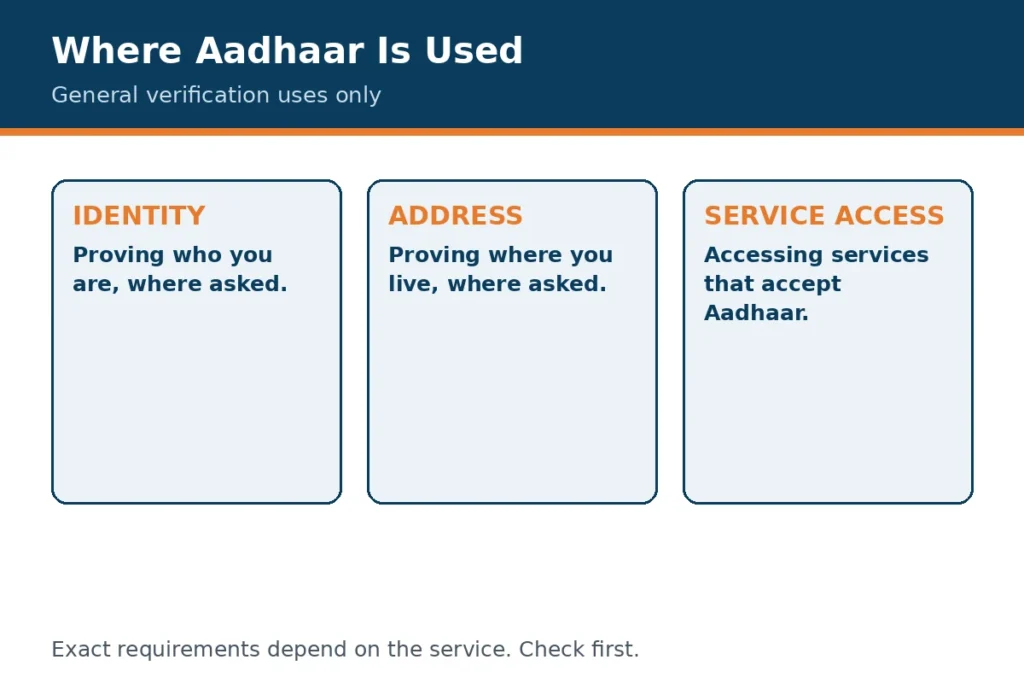
Linking and verification are the everyday uses of Aadhaar. Linking, in general terms, means connecting an Aadhaar record to a service or account where that service asks for identity proof, so that the service can confirm who it is dealing with. Verification means checking that the details presented match the record, and that the person presenting them is the person the record belongs to. Both uses should be done only through official routes, and only where the service genuinely needs that level of check.
Before you link Aadhaar to a service, ask three questions. First, does this service need Aadhaar, or would another identity document be accepted? Second, will a masked copy be accepted, so that the full number does not need to be shared? Third, what will the service store, and for how long? If the answers are unclear, ask the service, or use a masked copy where it is accepted. Never link Aadhaar through a message, a call, or a website that you did not reach through an official route.
Keeping your details current, and staying safe
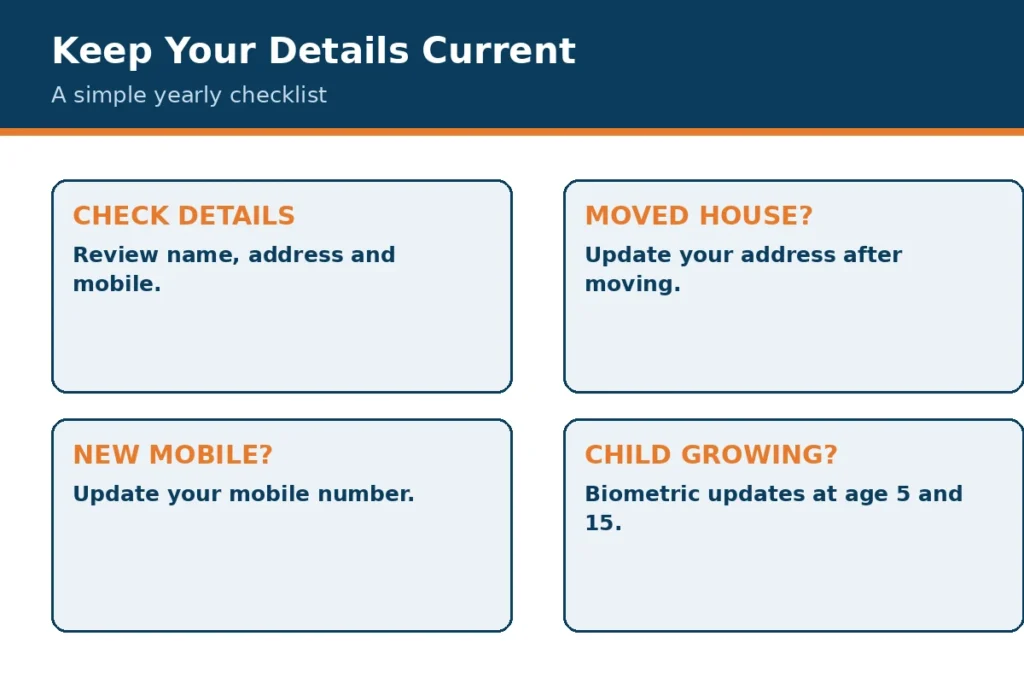
Keeping a record current is not a one-time task. An address changes when you move, a mobile number changes when you change a phone plan, and a name spelling may need to be corrected after a document is renewed. Reviewing the record from time to time, and checking a downloaded copy against your documents, is the simplest way to catch a difference early. If you find a difference, use the official correction route for that detail, keep the acknowledgement slip, and check the Aadhaar update status through the official portal.
Safety follows the same pattern. Share a masked copy where it is accepted, keep a regular copy private, store files in a safe folder, and delete copies you no longer need. Do not share a full number, a code sent to your phone, or a password with an unofficial site or caller, and do not follow a link in a message that promises a faster result. For more about this site, read the About page, and for questions about this guide, use the Contact page. The Disclaimer, Privacy Policy and Terms of Service pages explain the limits of this guide and how this site is run.
Finally, remember the order that keeps every task simple: start from the official myAadhaar portal or the official UIDAI site, decide whether a masked copy will do, use a private device, and keep the acknowledgement for any update. With that order in mind, a download aadhaar card task, a masked aadhaar download, an aadhaar update status check, or a baal aadhaar visit becomes a calm, repeatable process, rather than a rush through unfamiliar forms. Use this guide as a map, and the official portal as the place where the action itself happens.
Full guides
Read the full guides:
Frequently asked questions
Is this the official Aadhaar website?
No. This is an independent guide. For any official action, use the official myAadhaar portal or an authorised centre.
What does masked Aadhaar look like?
It shows only the last 4 digits, in the format XXXX-XXXX-1234. The digits shown here are placeholders only.
Do I need a URN to check an update?
Use the reference on your acknowledgement to check on the official portal, and call 1947 if it has been pending a long time. Keep your reference safe.
Can a child under 5 get Baal Aadhaar?
Yes, through the Baal Aadhaar route. A centre visit is normally needed, so check the official guidance and the documents required before you go.
More frequently asked questions
Is a masked copy accepted everywhere?
Not necessarily. It depends on the service and on what that service asks for. Ask the service first, and use a full copy only through an official channel if a full copy is required.
What if my mobile number is not linked?
Online steps that need verification through a linked mobile number may not work until the number is updated. A centre visit may be needed to update the mobile number, so check the official guidance before you go.
Can I download Aadhaar for another person?
No. Each person should use their own official route, with a parent or guardian helping a young child at a centre. Do not download, share or store another person’s copy.
What should I do if my name is spelled differently?
Note the exact difference, compare the record with your documents, and use the official update route or an authorised centre to correct it. Do not edit a downloaded copy yourself.
What if my update is still pending after a long time?
Check the status on the official portal using the reference on your acknowledgement slip, and keep that reference safe. If it has been pending a long time, call 1947 for official help.
Is this page a login page?
No. This page is a guide only, with no login form and no place to enter an Aadhaar number, a code, or a password. For any official action, use the official myAadhaar portal or an authorised centre.
Official action: use the official myAadhaar portal only. This page is a guide, not a login page and not a substitute for the official portal.