Masked Aadhaar Download
Masked Aadhaar is a safer copy of your Aadhaar for everyday use. It shows only the last four digits of your Aadhaar number, while the first eight digits are hidden. This guide explains, in plain English, what masked Aadhaar is, how it differs from a regular copy, how to download it online, when you need to visit a centre instead, and how to open the downloaded file.
This is an independent guide. It is not the official UIDAI website, and this site does not collect your Aadhaar number, password, or one-time code. Always use the official myAadhaar portal for any download.
What is masked Aadhaar?
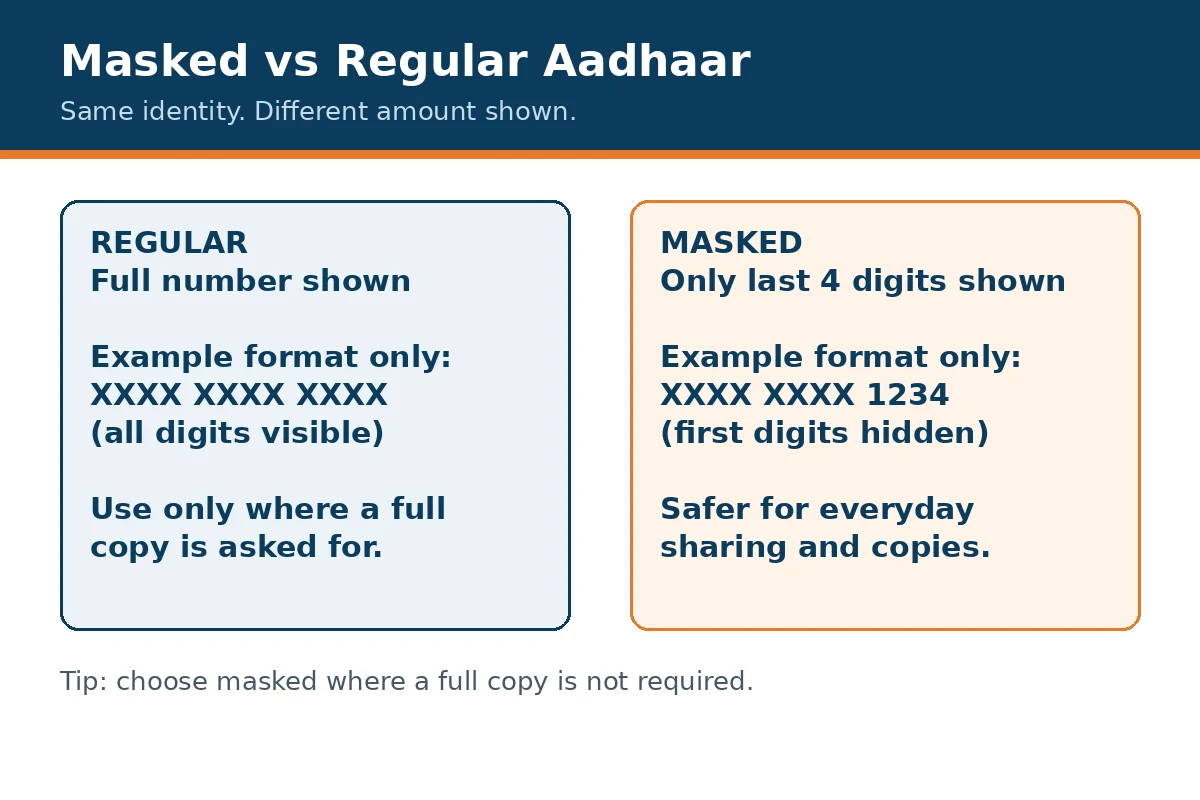
Masked Aadhaar is an electronic copy, known as e-Aadhaar, in which most of the Aadhaar number is masked. For example, instead of showing all twelve digits, it shows the last four digits only, with the earlier digits replaced by crosses. Your name, photograph, address, and other details shown on the copy remain the same.
Masking does not change your Aadhaar number. It only changes what is printed on that particular copy. Your original Aadhaar number stays the same, and a masked copy is still linked to the same record.
Masked vs regular Aadhaar: which should you use?
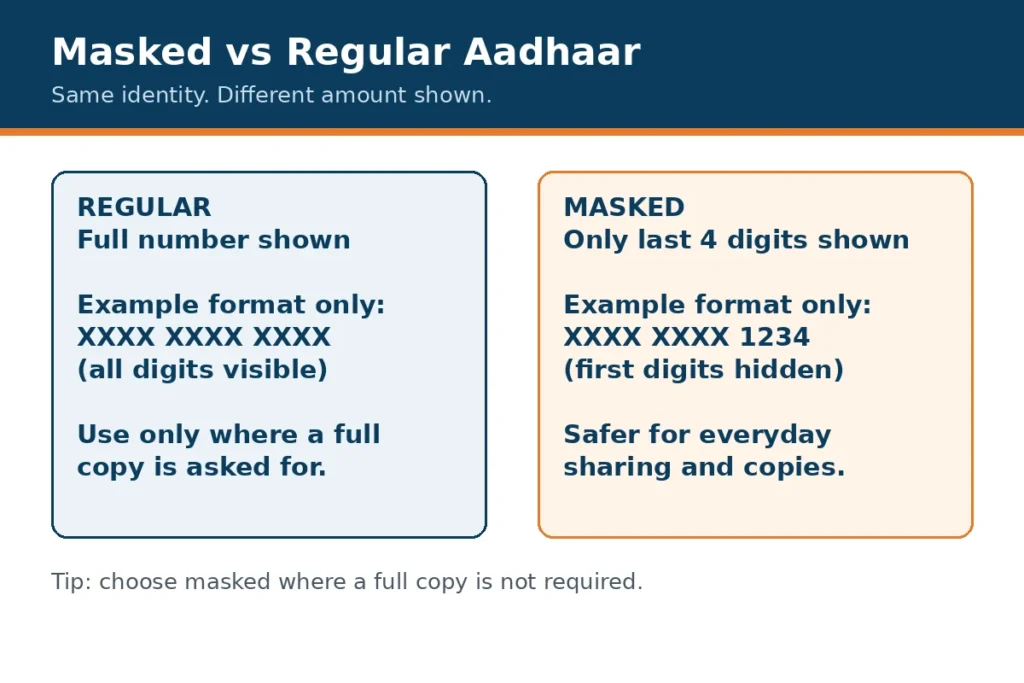
A regular copy shows the full Aadhaar number. A masked copy shows only the last four digits. That one difference matters a lot when a copy is shared, photocopied, emailed, or stored on a phone.
- Regular Aadhaar: use it only when the organisation asking for it genuinely needs the full number, and you trust how it will be stored.
- Masked Aadhaar: use it for most everyday proof-of-identity purposes, where only your identity needs to be confirmed and the full number is not needed.
- Sharing: a masked copy limits the harm if a copy is lost, forwarded, or kept longer than necessary, because the full number is not on the page.
- Validity: a masked copy is not a different kind of Aadhaar. It is the same e-Aadhaar, with the number partly hidden for safety.
Download masked Aadhaar online: step by step
Downloading masked Aadhaar is an online step. You do not need to visit a centre just to download a copy, provided you can sign in on the official myAadhaar portal and complete its own verification there.
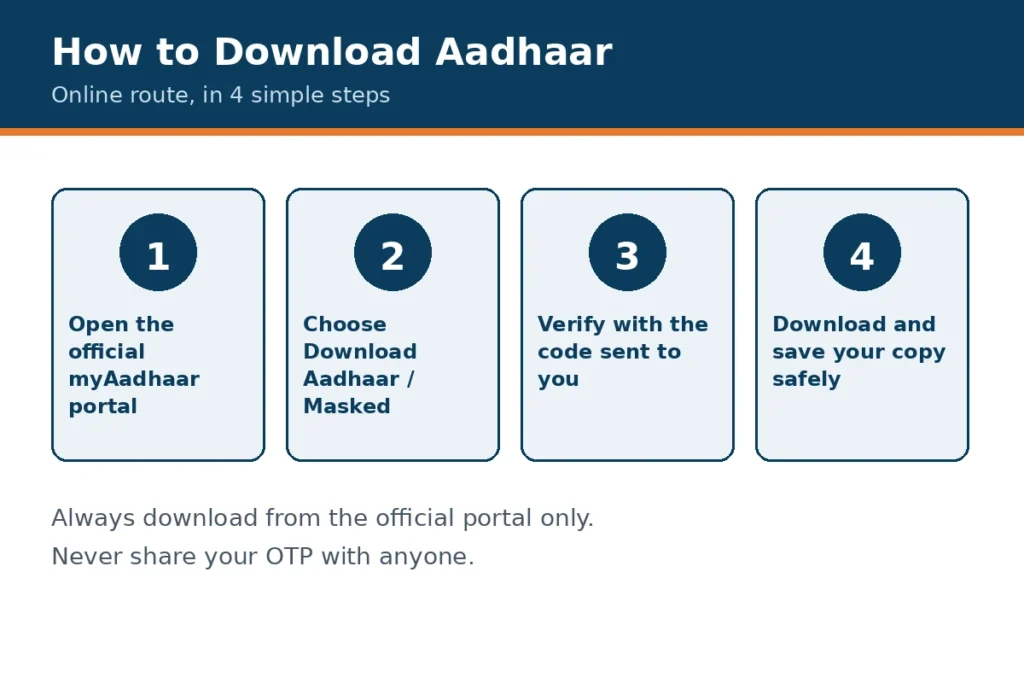
- Open the official myAadhaar portal from the link on our homepage.
- Sign in on the official portal using its own sign-in process.
- Choose the download option for e-Aadhaar.
- Choose the masked option, so only the last four digits are shown on the copy.
- Download the file and save it in a safe place on your own device. Do not send it to anyone else, and do not upload it to this guide site.
Check the downloaded copy before you use it. Confirm that your name and photograph look correct, that the copy is marked as masked, and that only the last four digits are visible. If anything looks wrong, do not use that copy. Download a fresh copy, or visit a centre for help with your record.
When you need a centre instead
Some tasks cannot be finished online. Visit an Aadhaar enrolment centre or Aadhaar Seva Kendra if:
- you cannot sign in on the official portal;
- your mobile number is not linked, so you cannot complete the portal verification;
- your photograph, fingerprints, or iris details need to be updated, because biometric updates are done in person;
- your details on the record itself are wrong and the correction needs documents checked at a centre.
Downloading a copy is online. Correcting biometrics, and most document checks, are centre tasks. Knowing that split saves a wasted trip, and it also stops you from sharing personal details with unofficial helpers.
How to open the e-Aadhaar PDF: the password format
The downloaded e-Aadhaar file is a password-protected PDF. This is the answer most readers search for, so here it is plainly:
The PDF password is the first four capital letters of the name as shown on Aadhaar, followed by the year of birth. That is the format only. For example, in format terms, a name starting with ABCD and a birth year of 1990 gives a password in the form ABCD1990. That example is a format illustration, not a real person’s password, and it will not open your file. Use your own name, exactly as shown on your Aadhaar, in capital letters, followed by your own year of birth.
Take care with the details. Use capital letters, not small letters. Use the name exactly as it appears on Aadhaar, including the first four letters only. Use the four-digit year of birth, not a full date of birth.
If the file will not open
- Check that you typed capital letters, and that you used the name as shown on Aadhaar, not a nickname or a different spelling.
- Check the year of birth. A single wrong digit will stop the file from opening.
- Try a different PDF reader on the same device, in case the first reader is showing an error rather than a password problem.
- Download the file again from the official portal, in case the first download was incomplete.
- If it still will not open, and your name or year of birth on the record may be wrong, visit an enrolment centre to have the record checked. Do not share the file, or its password, with anyone offering to open it for you.
Keeping a masked copy safe
- Store the file on your own device, not on a shared computer.
- Delete old copies you no longer need, and do not keep a copy in an email inbox by default.
- Share a masked copy only when it is asked for, and only through a route you trust.
- Never share your full Aadhaar number, password, or one-time code to get a copy opened or downloaded.
Fees to know
Ordering a physical PVC card is a separate service from downloading e-Aadhaar. The Aadhaar PVC card charge shown on UIDAI’s official online-services page is Rs 75, including GST and speed post charges, revised with effect from 1 January 2026. Last checked on UIDAI: 3 November 2026. See the official UIDAI online-services page for the current wording, and the full fee table on our homepage.
Related guides
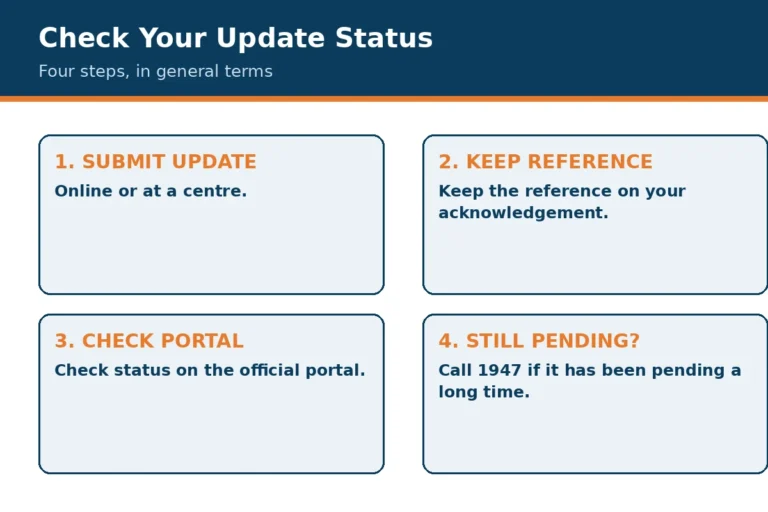
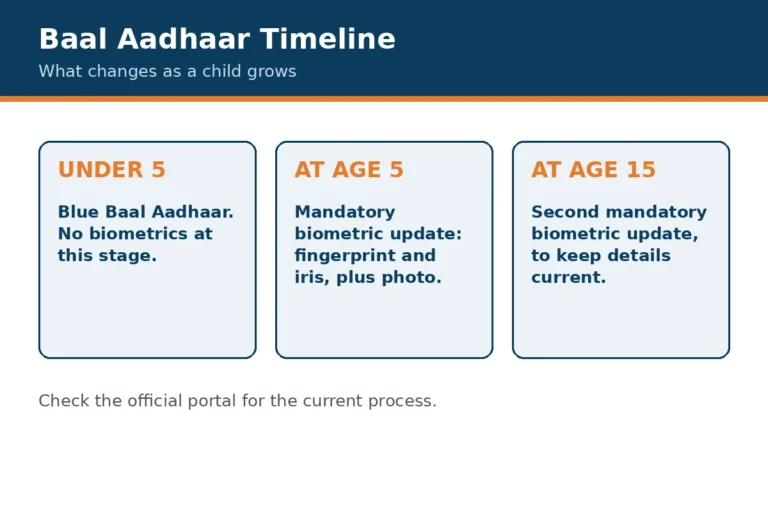
Read the full guide to Aadhaar Update Status by URN if you are waiting for a correction, and Baal Aadhaar Under 5 if the copy is for a young child. Start from the homepage for the full overview.
2 Comments